January 2023
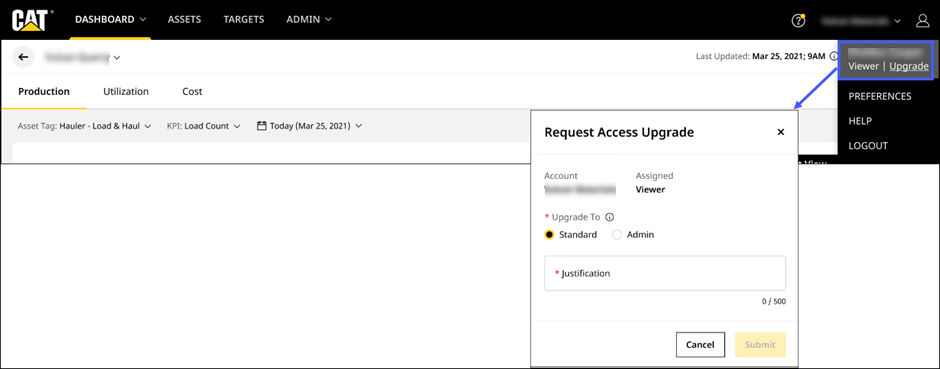
Request Account Admin to Upgrade Your Current User Role
Instantly request access to exclusive features with an upgrade of your user role to Standard user or Admin.
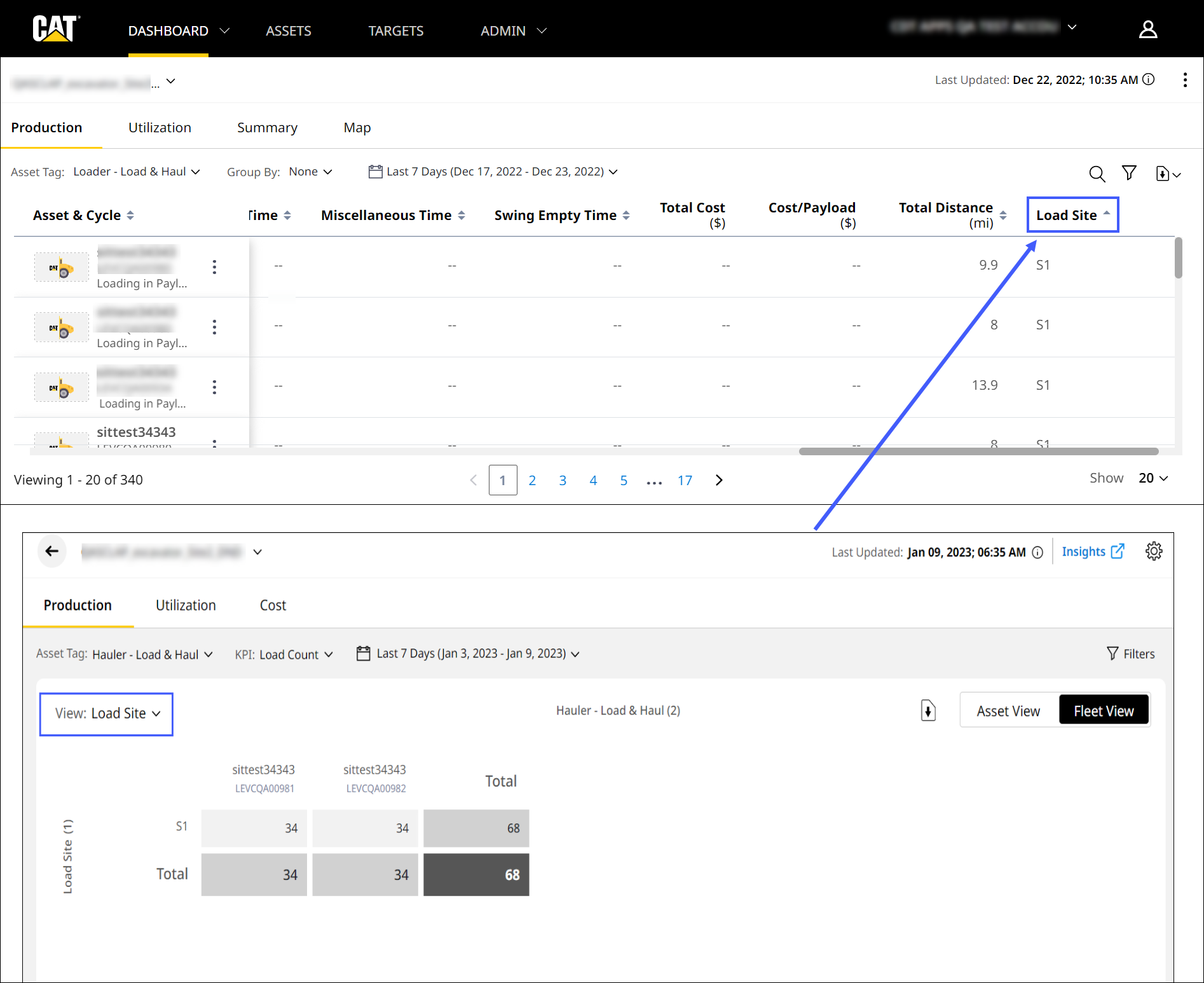
View Load Site Data on Site Summary and Insights
Access and track your site's load site data in tabular form. View the total material moved out of your load site on List Summary view under Production. You can also download, configure and filter this data by Load Site ID on Production (Insights). This information is available only for Advanced Productivity subscribed assets and applicable for loaders, haulers and load out asset tags which support the Load Site ID.
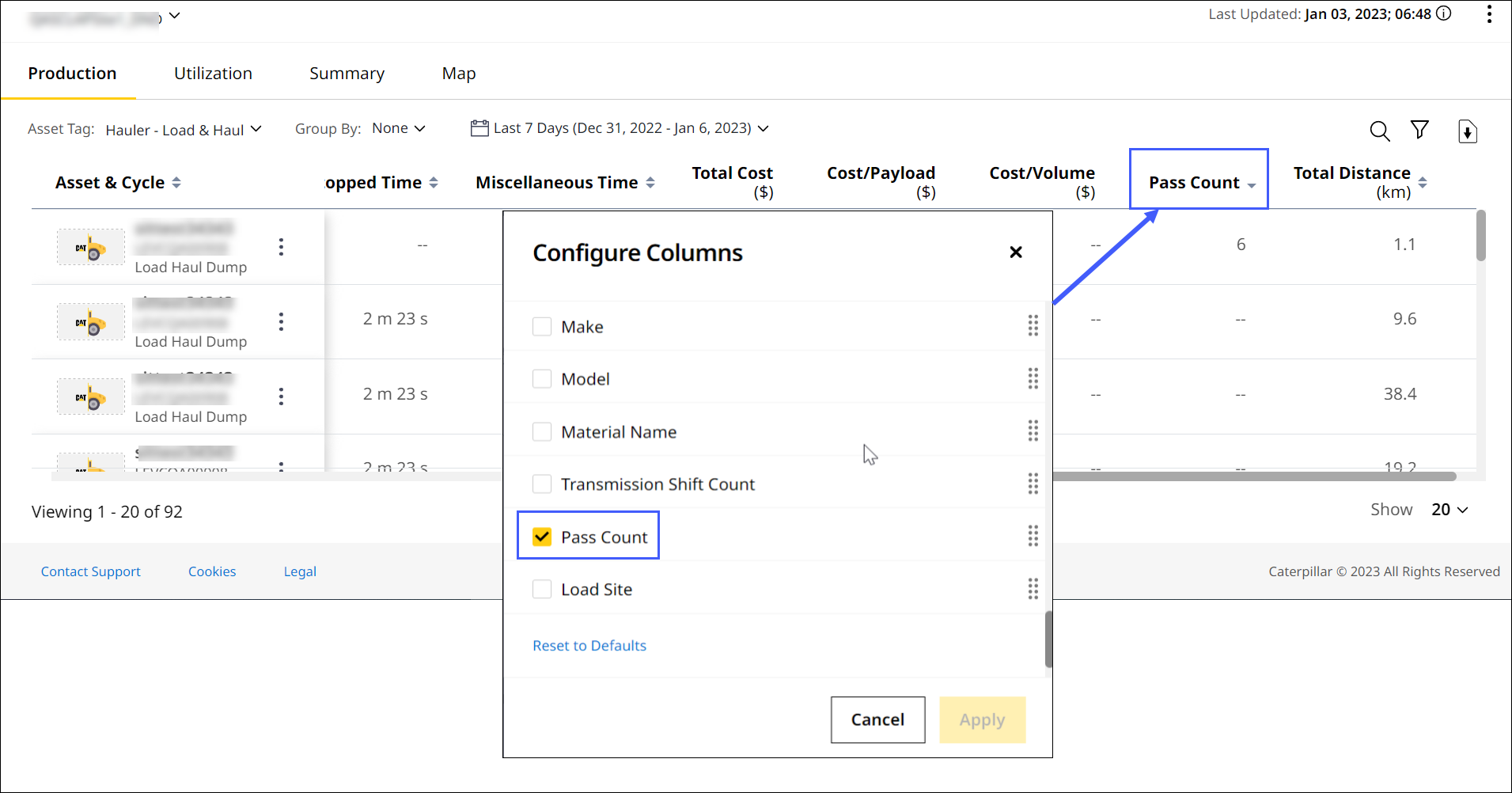
View Pass Count on Insights
You can now view pass count for each hauler cycle on Insights. Configure this column within Production settings. This information is available only for Advanced Productivity-subscribed haulers.
Improved Map Performance on Site Summary and Insights – CPI 518857
Updates made to Map view fixed lags occurring during loading events and segment selection. This has optimized overall map performance on both Site Summary and Insights.
Resolved Runtime Report Delivery and Download Issue – CPI 516788 & CPI 518736
With a backend system fix, the issue in delivering second and third shift runtime reports has been resolved. Subscribed email IDs can now receive and download report details of a single cycle spanning across two different shifts and date ranges.
Resolved Truck List Edit Issue – CPI 521326 (ICA)
There was an issue where truck list details could not be edited within Remote List Management. To fix this, enter the truck name using a maximum of 12 characters.
Fixed Internal Server Error Messages Showing Up Within Advanced Productivity Reports – CPI 521572
By updating firewall rules, the backend team removed internal server error messages found in Advanced Productivity reports. Data will now show up inside the reports as expected.
Resolved Application Access Issue by Selecting Date Format – CPI 521947
Previously, VisionLink Productivity could not be accessed due to a different date format selected in VisionLink. To fix this, click on User Profile  > Preferences in VisionLink Productivity. Then, select one of two default date formats available:
-
DD MMM YYYY or
-
MMM DD, YYYY