Pair Device
Pair your asset with the EC520 grade control device (GCD) connected to a third-party radio without requiring a network manager. This not only enables all grade features, but also helps to do the following:
- Locate assets,
- View detailed device information
- Perform remote troubleshooting
To pair an asset with the GCD serial number:

• To successfully pair, assets must be running with GNSS receiver corrections. Pairing isn’t supported when using UTS corrections.
• Complete the following to enable pairing:
◦ On Create Site/Edit Site > Add Asset, add and configure the subscribed grade asset to your site.
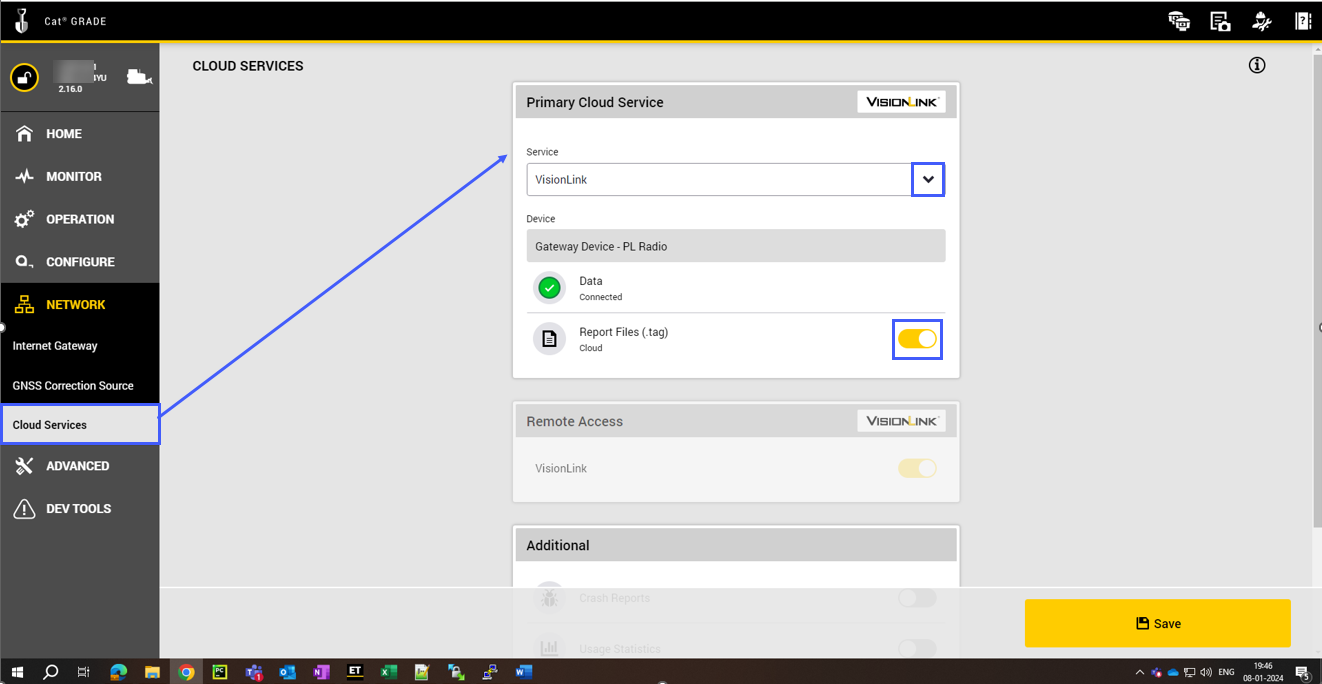
◦ To ensure proper location reporting and pairing verification, follow these steps on asset’s TD540 display:
▪ Launch Cat Grade on your asset > navigate to Network > select Cloud Services.
▪ On Primary Cloud Services, ensure that VisionLink is selected from the Service drop down.
▪ Also, ensure that you toggle on Report Files (.tag).
View ImageView Image
◦ The Grade asset must be configured with one of the following subscription and setup combinations:
▪ PerformancePro with 3D Productivity
▪ Performance with Grade Connectivity
◦ Both configurations require the following:
▪ An updated EC520 (v2.22) GCD
▪ ProductLink radio
▪ A third-party radio (for example, SNM941).
◦ Supported ProductLink radios include the following:
▪ PL542
▪ PL641
▪ PLE640
▪ PLE641
▪ PLE641+PL631
▪ PLE642
▪ PLE642+PL671
▪ PLE643
▪ PLE643+PL671
▪ PLE681
▪ PLE682
▪ PLE682+PL671
▪ PLE683
▪ PLE683+PL671
▪ PLE742+PL671
▪ PLE743+PL671
▪ PLE782
▪ PLE782+PL671
▪ PLE783
▪ PLE783+PL671
-
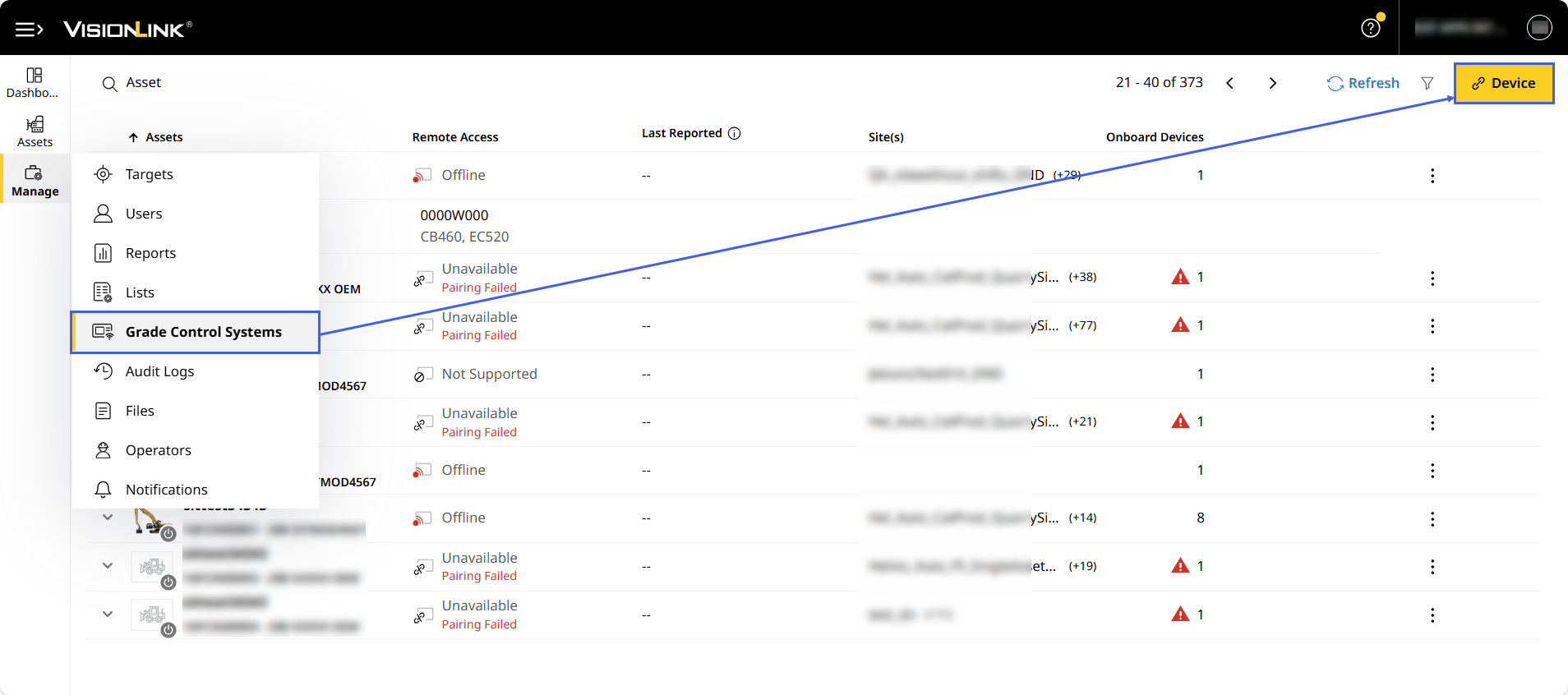
Navigate to Manage > select Grade Control Systems > click
 .
.
-
Select Asset to enter the asset ID/serial number or browse unpaired assets that have an active VisionLink Grade subscription.
• Only assets with Grade add-on subscription are available in the list.
• Assets are sorted from most recently subscribed assets to the oldest.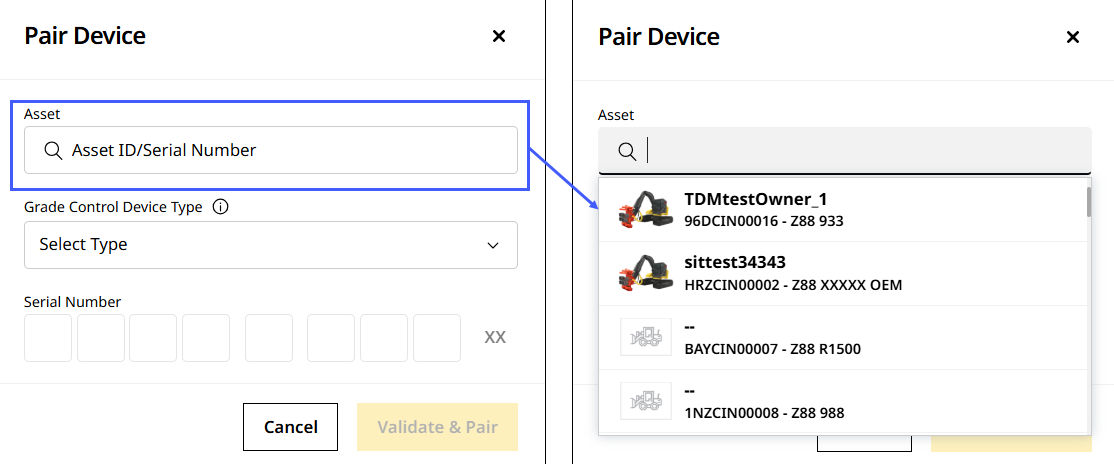
-
Select your preferred asset.
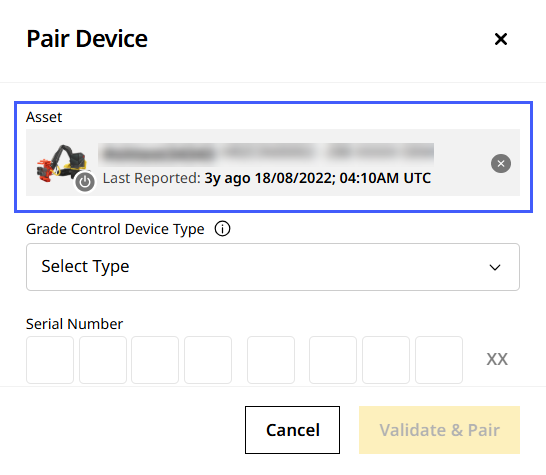
-
Click Grade/Earthworks (EC520) to select the GCD type.
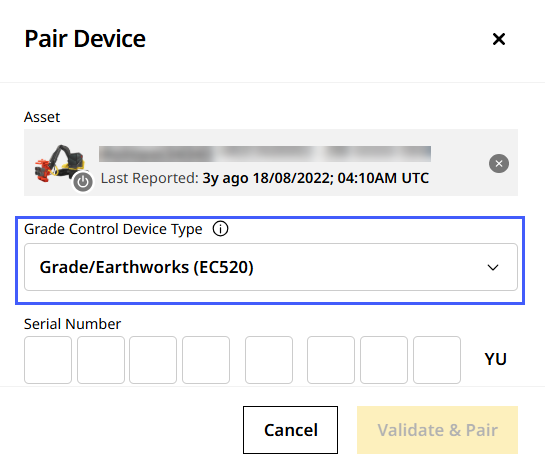
-
Enter the correct GCD serial number.
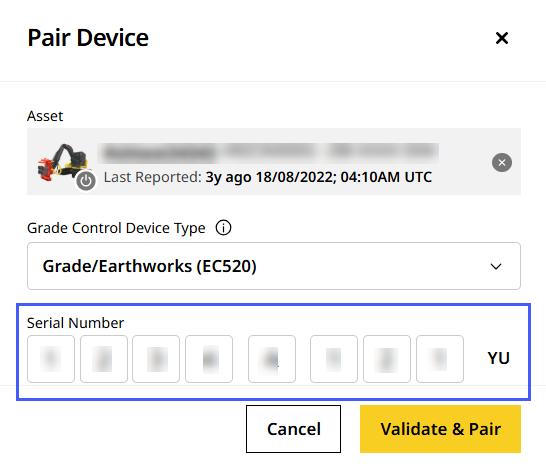
-
Click
 to verify pairing.
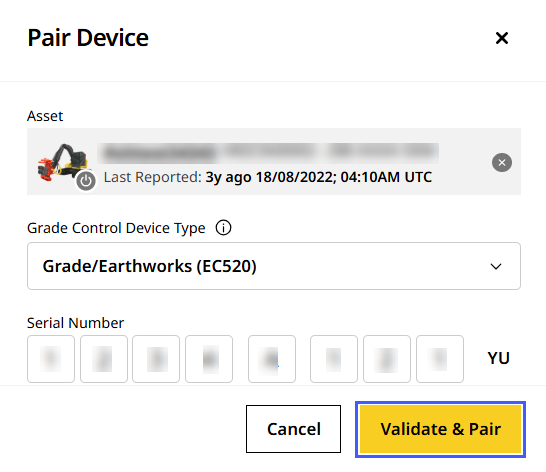
• The verification process checks the following conditions:
View ImageView Image
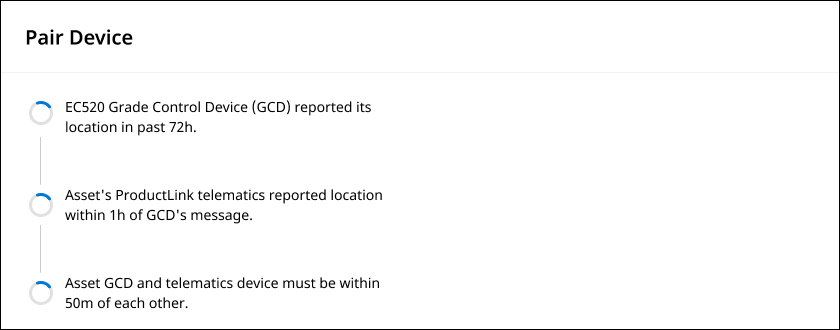
◦ If the asset’s EC520 GCD has reported location within the last 72 hours.
▪ In case of error here, refer to the steps outlined here.
◦ If the asset has reported ProductLink (PL) telematics location within one hour of GCD’s reporting.
◦ If the asset’s GCD and telematics are within 50 meters of each other.
• The pairing is verified using the status message location instead of .tag files during pairing verification.
• For existing paired assets, the application will continue to check location from .tag file.
◦ To begin using status messages for location verification, simply edit the pairing. -
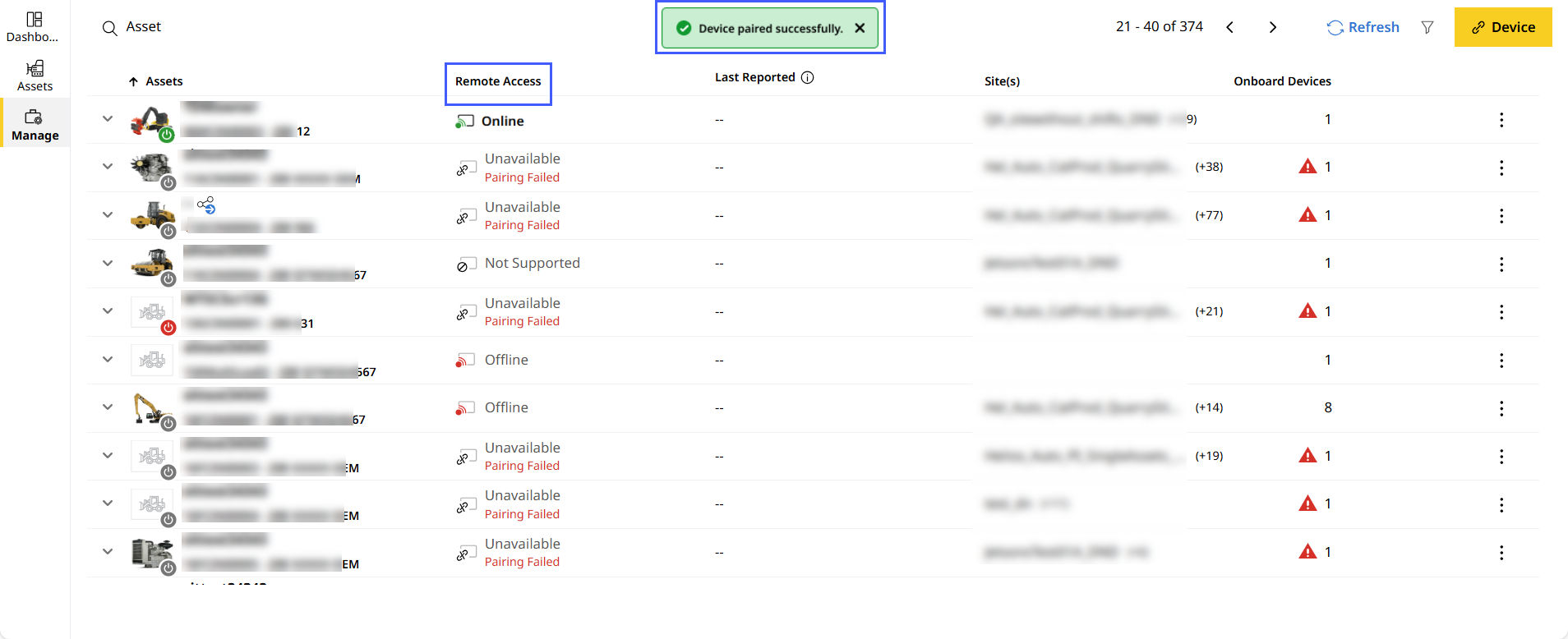
Once verified, you will able to see the status of the asset under Remote Access.